
Using the app
Crawlers, the sheet, rolls, buffs, gear, leveling and the rest of a session.
This page walks through a night of play: making a crawler, finding your way around the sheet, rolling dice, keeping track of what is happening to you and growing as you go down the floors. It is written for the Android, iOS and macOS apps, which look a little different from one another but work the same way. Where a button lives in a different place on your device, the name is what to look for.
Finding your way around
The app has three places, shown as tabs or a side rail depending on your device:
- Crawler is where your crawlers live. Open one and the tab takes its name.
- Compendium is the library of everything the app knows: skills, spells, gear, buffs, debuffs, races and classes. It is read-only; use the search box to find things.
- Homebrew is where your own content lives. It has its own page.
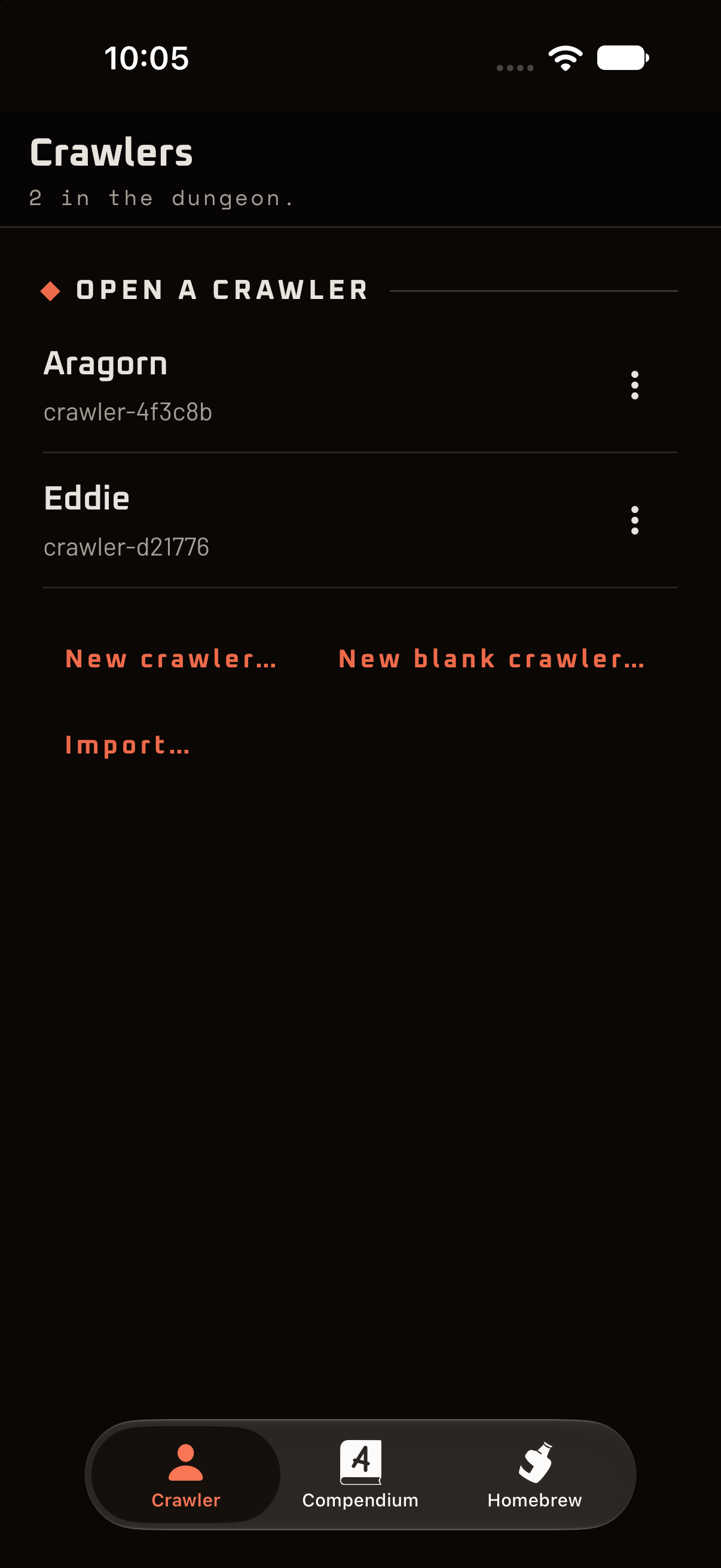
Your crawlers
The first screen under Crawler is your list of crawlers. An empty list offers four ways to get started:
- New crawler… walks you through making one, step by step. This is the one to pick for a first crawler. See Making a crawler.
- New blank crawler… gives you an empty sheet to fill in yourself, for when you know the rules.
- Import… opens a crawler someone exported from another device.
- Add the sample crawler gives you Brandon, a ready-made crawler to poke at while you learn the sheet. Nothing about Brandon is precious; delete him whenever you like.
Each crawler in the list has a ⋮ menu with Rename…, Duplicate, Export… and Share… (depending on your device) and Delete. Export and Share make a file you can keep as a backup or hand to another device.
Your crawlers are saved as you play. There is no Save button, and nothing to lose by closing the app mid-fight.
Making a crawler
New crawler… asks you six questions, in rulebook order. A progress bar and “Step 1 of 6” show you where you are, and Back takes you to the previous step.
- Who are you? A name, your pronouns (anything you like) and a crawler number. Issue one picks a number for you.
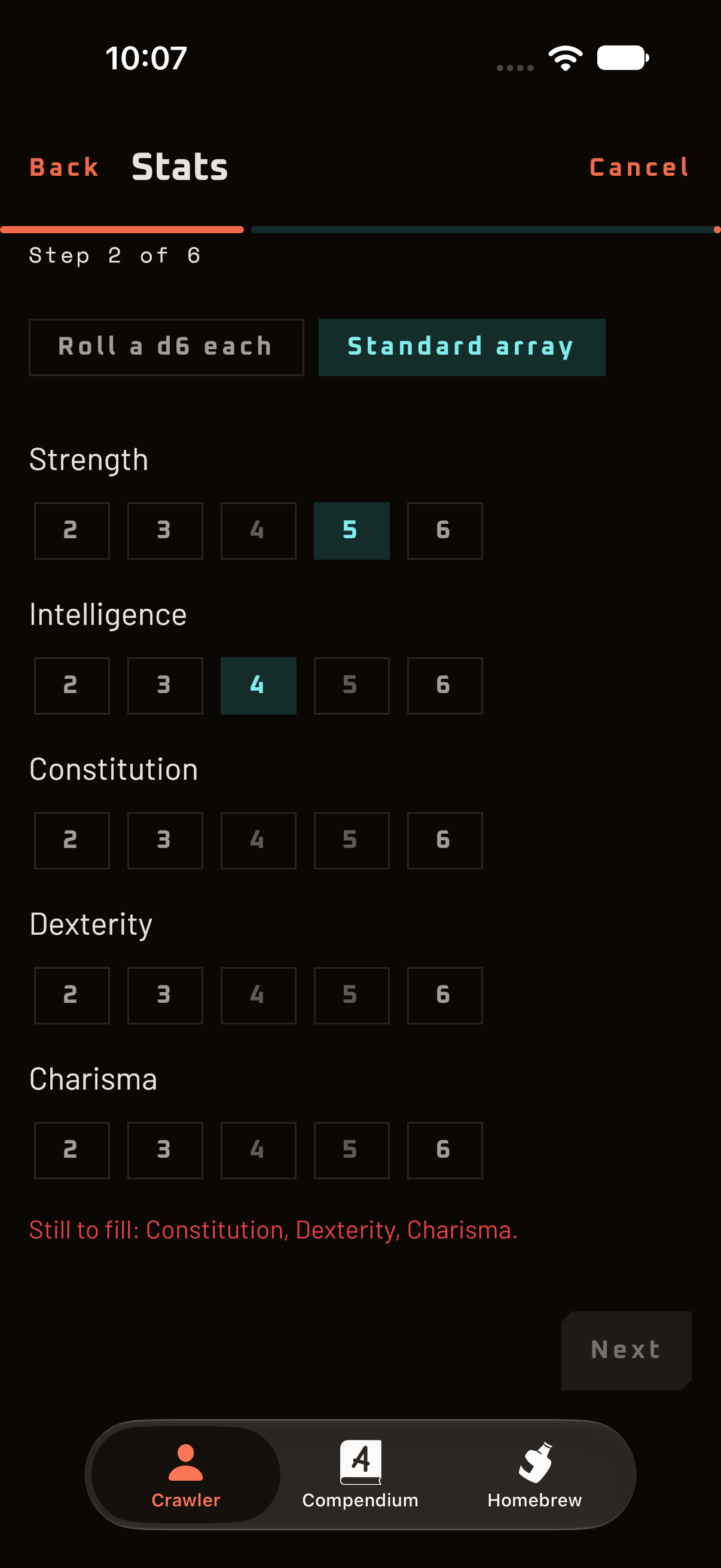
- Stats. Either Roll a d6 each, or take the Standard array and decide which stat gets which number.
- Where you come from. Four stages of your life. For each, pick a background (or tap Roll), then take two of the three skills it offers.
- How you fight. Everybody starts with Unarmed Combat. Pick one more way to fight: a weapon you brought, an attack spell (if your Intelligence allows it), or something else entirely.
- Past Traumas, Loose Ends and Regrets. Three things that follow you into the dungeon. Pick one for each, roll for it, or write your own. Let the System pick does exactly what it says.
- What you brought. What you are wearing, your weapon and something interesting, useful or weird.
Nothing is saved until you finish. Cancel at any point asks “Stop making this crawler?” and, if you agree, throws the half-built crawler away without a trace. Finish, and your crawler is saved and opened on the sheet.
The sheet
Open a crawler and you land on the sheet. On a tablet or a computer it is laid out in two columns; on a phone the same sections stack into one column that you scroll.
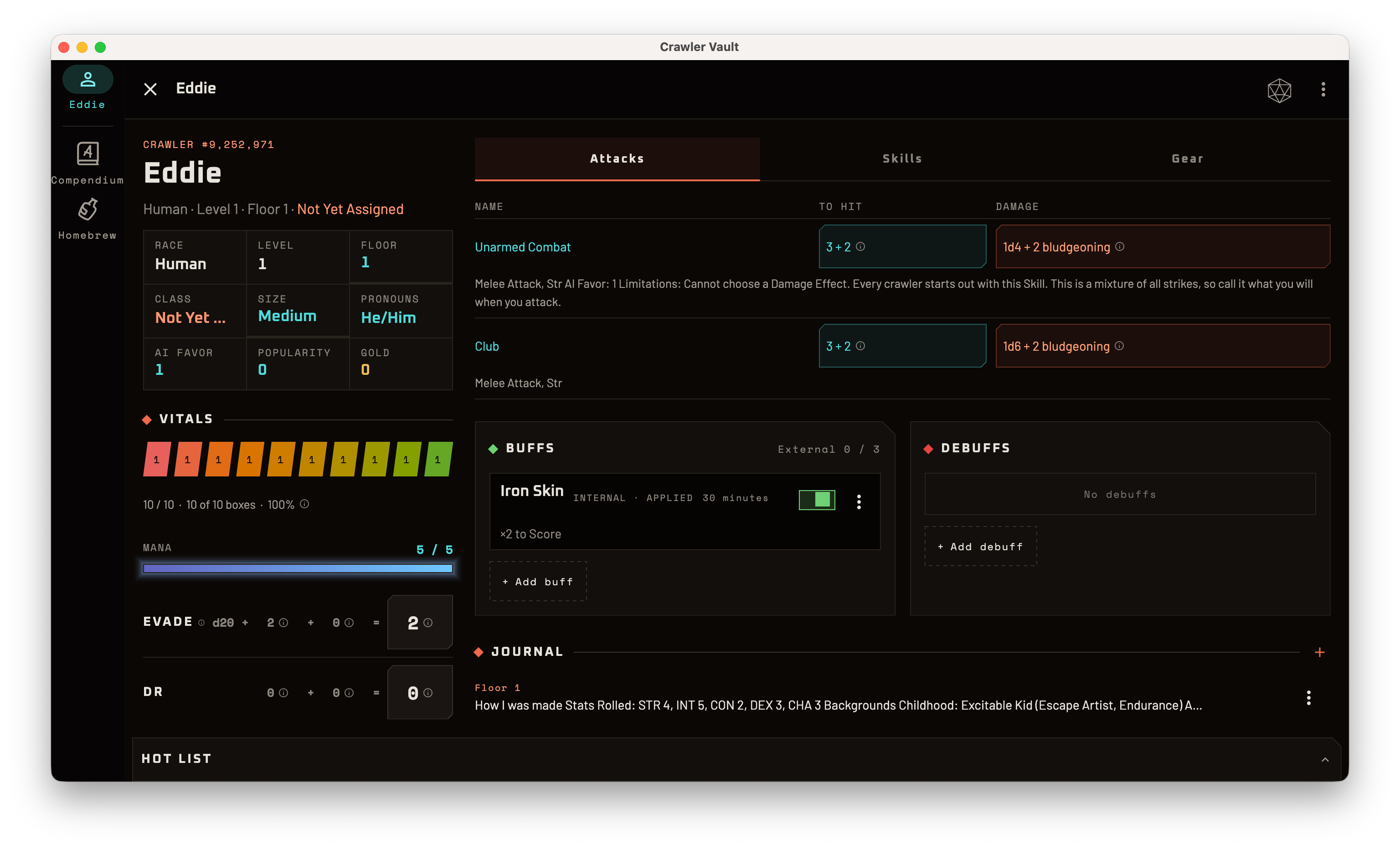
On the left (or the top):
- Identity: name, race, level, floor, class, size, pronouns, AI Favor, Popularity and Gold. Tap Level to level up, and type in the Floor box to change floors. Race and class are chosen from your action items on the third floor.
- Vitals: your health as a row of boxes, and your mana as a bar.
- Evade, DR, Speed, Step and Checks: the numbers a fight keeps asking for.
- Stats: each stat shows its base value, its current value (with everything that is affecting it) and its modifier.
On the right (or below):
- Three tabs: Attacks, Skills and Gear.
- Buffs and Debuffs.
- Journal and Background.
- A Hot list strip at the bottom of the screen for things you use all the time.
Along the top bar, the ✕ closes the crawler, the d20 opens your roll history and ⋮ opens the menu, which holds Undo, Redo, Safe-room rest, End session, Grind… and Updates. When there is something waiting for you to decide, an action items button appears beside them (see Action items).
Health and mana
Your health is a row of boxes. Tap a box and your health becomes that box: every box after it empties, and every box up to it fills. Tap the last full box and it empties, which is one box of damage. Tap your mana bar to spend or restore mana in a dialog.
Why is that number what it is?
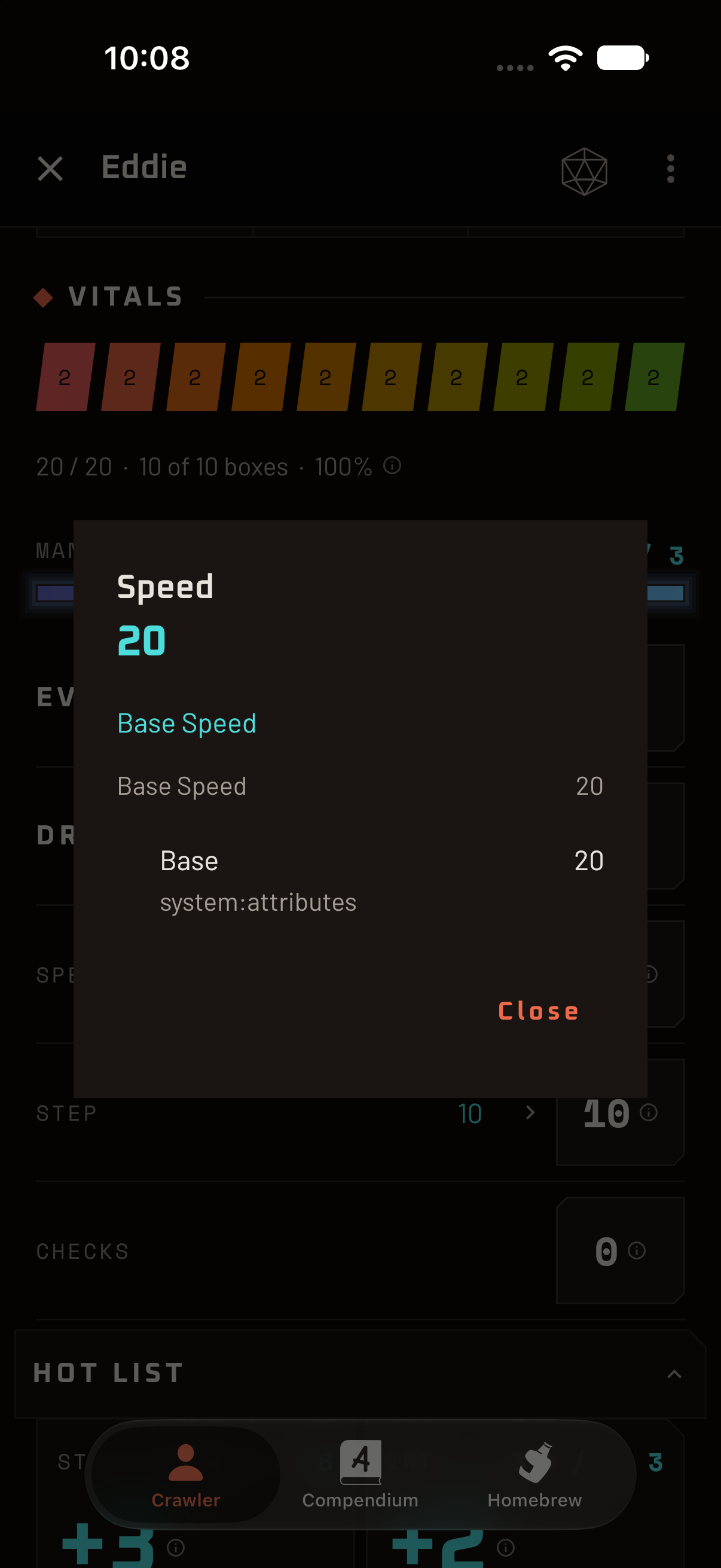
Almost every number on the sheet has a small ⓘ beside it. Tap it and the app shows its working: the base value, what each item, race, class, buff or debuff added or multiplied, and how it was rounded. If a number looks wrong, this is the first place to look, and usually the last.
Rolling dice
Tap a stat’s name, a skill’s roll button or an attack’s To Hit and the app tells you exactly what to roll, with your own numbers filled in: “Strength check, 1d20 + 3, because your Strength modifier is 3”. You can choose Straight, Advantage or Disadvantage, then:
- tap Roll and the dice tumble across the screen and settle on a result, or
- tap Close and roll your own physical dice. The formula is just guidance.
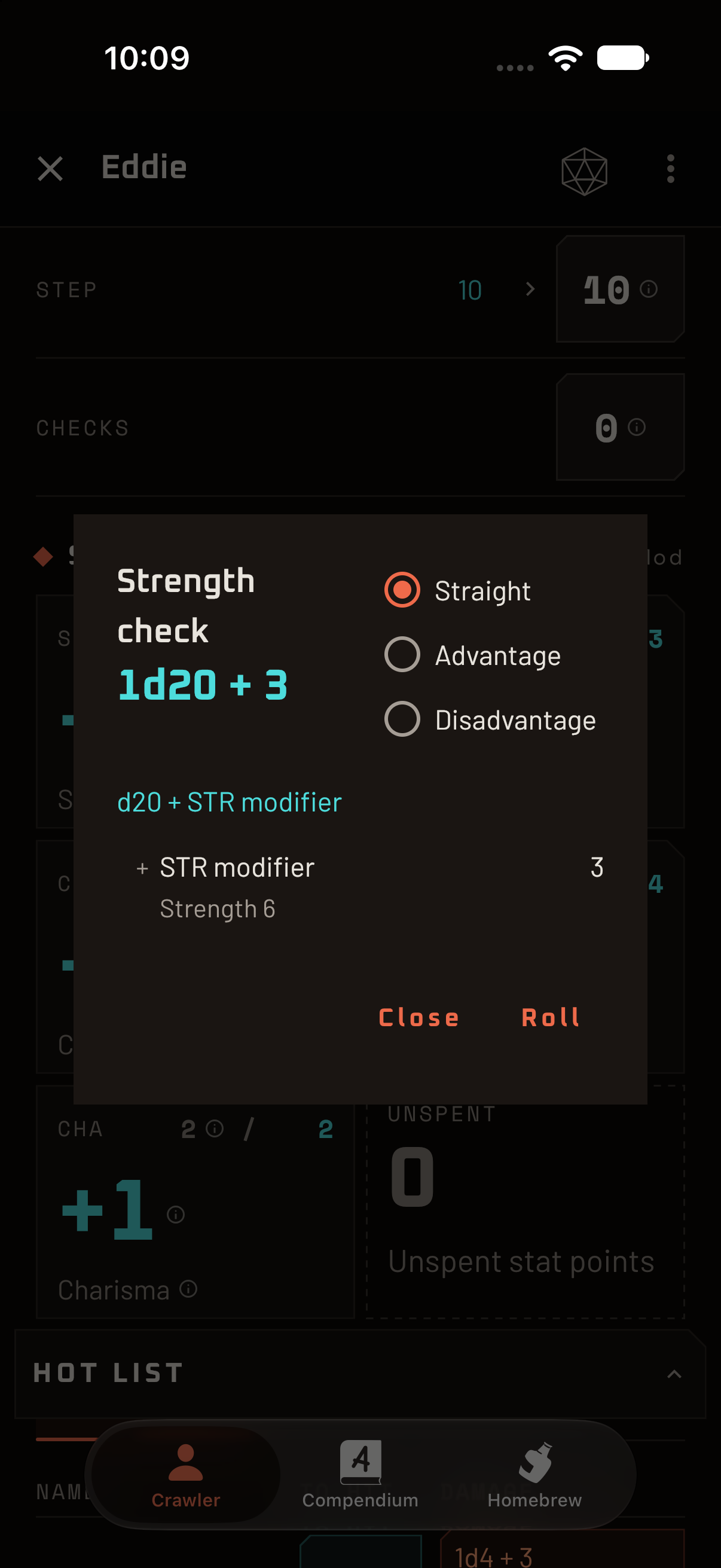
Tap the damage box on an attack to see how its damage is worked out, and tap an attack or skill’s name to read its full entry from the Compendium.
Every roll you make from the app goes into your roll history, behind the d20 icon in the top bar. It keeps your last fifty rolls, with the formula and the result. Tap Reroll to make one again, or Clear to start fresh. History is only kept while the app is open.
Attacks, skills and gear
Attacks
The Attacks tab lists your attacks with their to-hit and damage ready to tap. Rank-dependent upgrades are applied for you.
Skills
The Skills tab groups your skills (passive, unopposed and so on). Each row shows its rank, the stat it uses and a roll button. The Used checkbox on the left is how you mark a skill as tried this session. Those marks are what you will be asked about when you End session.
- Add skill learns a new one. Pick it from the Compendium, or type a name to invent one on the spot, because tables improvise.
- The ⋮ on a row removes a skill. If gear, a race or a class granted it, you are told, and the skill is switched off rather than lost, so you can bring it back.
- On the first two floors an Attempt untrained button appears. Try a skill you have not learned, rolled with Disadvantage, and at the end of the session you may keep one at rank 1.
Gear
The Gear tab has two halves:
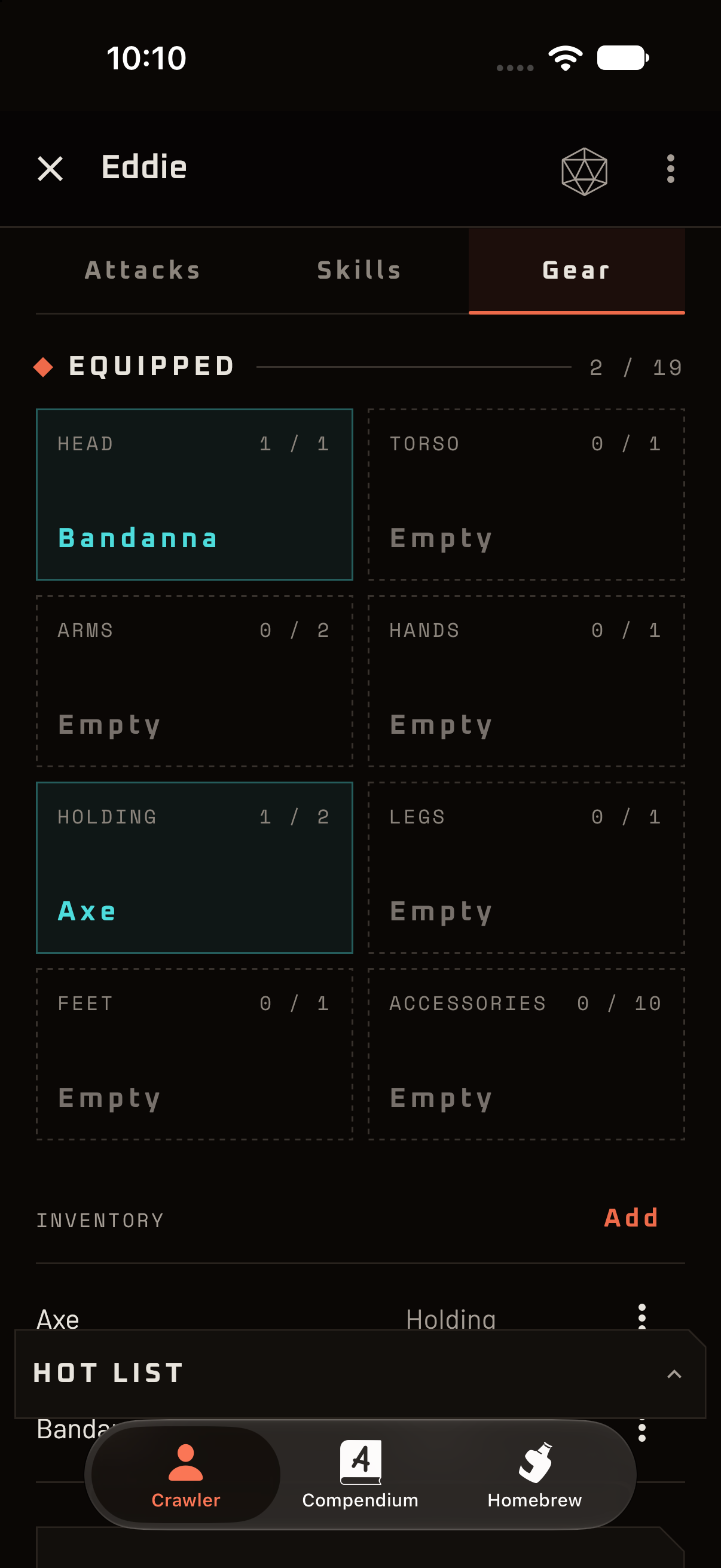
- Equipped shows your slots (head, torso, arms, hands, holding, legs, feet and accessories) and how many each one holds. Tap a slot to choose what goes in it, or to take something out.
- Inventory is everything you are carrying. Tap Add to pick something from the Compendium or type a name to make a new item, and tap an item to change how many you have or refill its charges. An item’s ⋮ menu has Pin to hot list and Remove.
Equip a ring and the stats it changes update straight away. Take it off and they change back. Gear’s effects only count while it is equipped, unless the item says otherwise.
Wearing more than a slot can hold is allowed. The slot turns red and says so, and nothing is removed for you.
Buffs and debuffs
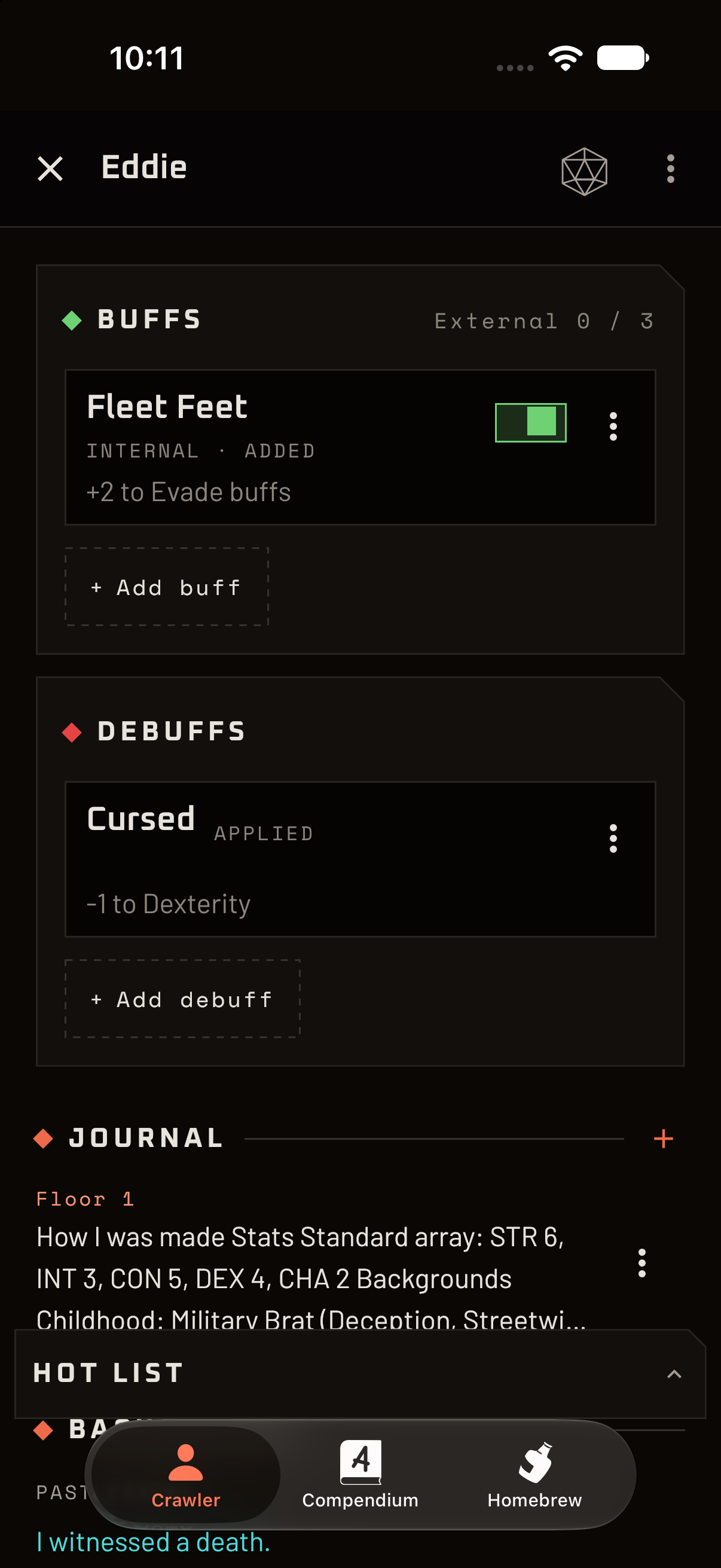
The Buffs and Debuffs sections show everything that is affecting you right now.
- Internal buffs affect only you, and start switched on.
- External buffs kick in on a trigger, so you decide when to switch them on. You can have three on at once. A fourth is not blocked, but the sheet flags it as breaking the rule so everyone can see.
- Debuffs are the bad stuff. The same debuff will not apply twice unless it is the stackable kind.
Use the switch on a buff to turn it on or off. Tap a row to see what it does, how long it lasts and when it can be used again, and to count its duration down. A buff or debuff that has run out stays on the list, marked as expired, until you remove it.
Add buff and Add debuff apply one to your crawler, either from the Compendium or something you make up on the spot. Buffs and debuffs from gear come and go with the gear, and cannot be removed by hand.
The hot list
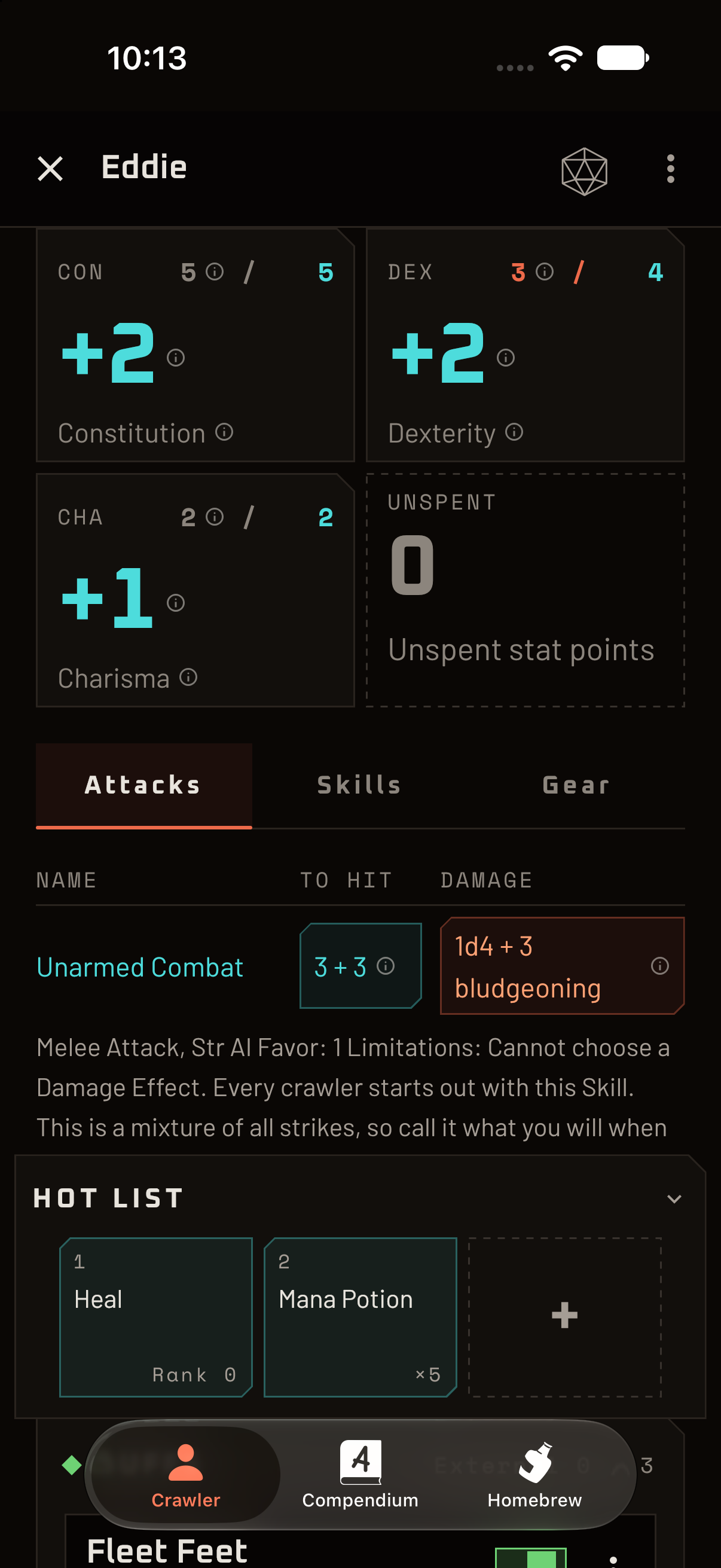
The Hot list strip at the foot of the sheet holds the potions, spells and gear you reach for in a hurry. It starts collapsed; tap its header to open it, and tap the big plus in the empty box to pin something. You can also choose Pin to hot list from an item’s or spell’s menu.
Tapping a pinned box never spends it straight away. For something you carry several of, like a healing potion, a dialog asks how many to use (it starts at 1). For a spell with an opposed check you get a roll dialog; passive spells need no roll.
Levels, floors and growing up
- Level up. Tap Level, choose how many levels you gained with − and +, and Confirm. Every level earns three stat points.
- Stat points. On the first two floors, points pile up unspent. When you reach the third floor you can spend the whole pile, and from then on you spend new points when you take a Safe-room rest. Unspent points are listed under your stats, with a Spend points button.
- Changing floors. Set Floor on your identity card. When you reach the third floor, new decisions appear in your action items.
Action items
The action items button in the top bar shows a count when the app is waiting on you. Open it to resolve each one:
- Choose a race and Choose a class, unlocked on the third floor. The picker lists every option with a summary of what it gives, and tells you which ones you do not qualify for yet. Both are chosen once, though the game can change them; if it does, use Change race… or Change class… from the ⋮ menu.
- Advancement checks earned by a session of play, with Roll, Success, Fail and Dismiss.
- Keep one untrained skill if you tried some on the early floors.
Sessions and rests
From the ⋮ menu:
- Safe-room rest refills anything that resets on a rest, and is where you spend stat points.
- End session asks for the advancement checks that two hours of play has earned. Nothing is rolled for you; the checks wait in your action items.
- Grind… spends your grinding hours on skills.
- Undo and Redo step back and forward through your changes to the sheet. On a computer, Ctrl/⌘ + Z does the same.
The journal
The Journal section is for the things you will want to remember: a vendor’s name, which floor had the door you should not have opened. Tap Add, type a note and Save. Each note is stamped with the floor you were on. View all opens the whole journal, and a note’s menu lets you Edit or Delete it. Undo brings a deleted note back.
Keeping the rules up to date
When the app’s content changes, for example when a rule is corrected, a crawler carrying that content can be brought up to date. Updates in the ⋮ menu shows how many there are, like Updates (3), and lets you apply them. Your crawler keeps working exactly as it is until you do. Homebrew content you edit works the same way.
Backups and moving to another device
Use Export… or Share… on a crawler in the list to save it as a file. On another device (or after a reinstall), use Import…. The same goes for homebrew: see sharing a pack.